MDC Workstation
Use the SpartanCAD MDC for calls, unit status, returns, messages, report records, live map tools, and call completion.
MDC Overview
The MDC is the in-character workstation for units. It provides call handling, unit status, searches, returns, forms, report records, messages, and live map tools from a single terminal-style interface.
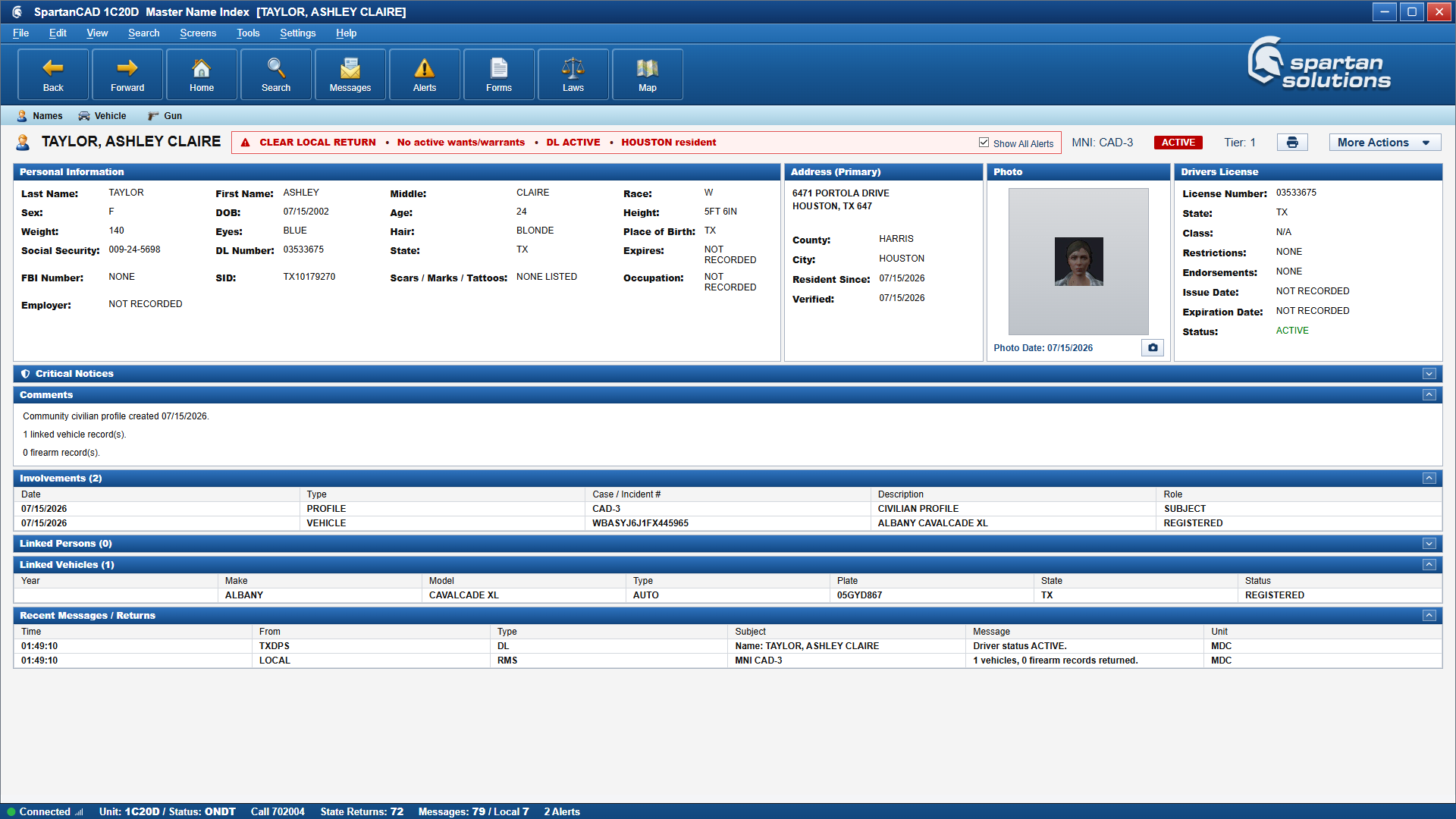
Sign In
The MDC sign-in screen requires a callsign and department. Username and password fields are locked by the CAD session.
If a saved workstation session exists, the MDC pre-fills the last workstation details, but the user still needs to click Select Sign In to unlock the terminal.
Callsign options come from approved member callsigns. Custom callsigns are only available when the community enables Custom MDC Callsigns under Admin Panel > Departments > MDC Callsigns.
Menubar And Shortcuts
The MDC uses a classic menu bar for fast access to common screens.
| Menu | Common Use |
|---|---|
| File | Workstation actions and session controls. |
| Edit | Editing tools for supported records. |
| View | Display and view options. |
| Search | Name, vehicle, and gun searches. |
| Screens | Home, messages, alerts, forms, laws, and map. |
| Tools | Utility workflows and terminal tools. |
| Settings | Preferences, sounds, and display options. |
| Help | Help and reference items. |
These shortcuts apply to the classic MDC while it has keyboard focus. FiveM bindings and other resources can conflict with function keys; use the visible buttons or remap the conflicting FiveM binding.
Toolbar shortcuts include:
| Shortcut | Action |
|---|---|
Alt+ArrowLeft | Back. |
Alt+ArrowRight | Forward. |
Alt+H | Home. |
Ctrl+J | Search. |
F6 | Messages. |
F10 | Alerts. |
Ctrl+Shift+F | Forms and report records. |
Ctrl+Shift+L | Charges and laws. |
Ctrl+Shift+M | CAD map. |
Home And Unit Status
The home screen includes My Call, unit status controls, call history, assist actions, responding units, new call, assign self, and responsible-unit actions.
Common status flow:
| Status | Meaning |
|---|---|
OFFDT | Off duty or unavailable. |
ONDT | On duty. |
AVAIL | Available for assignment. |
BUSY | Busy or attached to activity. |
RLog | Radio log / report log action flow. |
CMPLT | Complete the active call and open the disposition popup. |
Use CMPLT when the assigned call is ready to be closed. The popup collects disposition, observed status, clearance, circumstance, and call comments. Saved comments are appended to the call history and notes.
In FiveM, sign into the MDC inside /cad to use live location updates and unit commands. After going on duty, use /attach [call number] to join a call and /gps to route to it. /trafficstop [description] requires clearing from any current call first. See the command reference.
Calls
The call workspace provides structured incident tabs and unit actions.
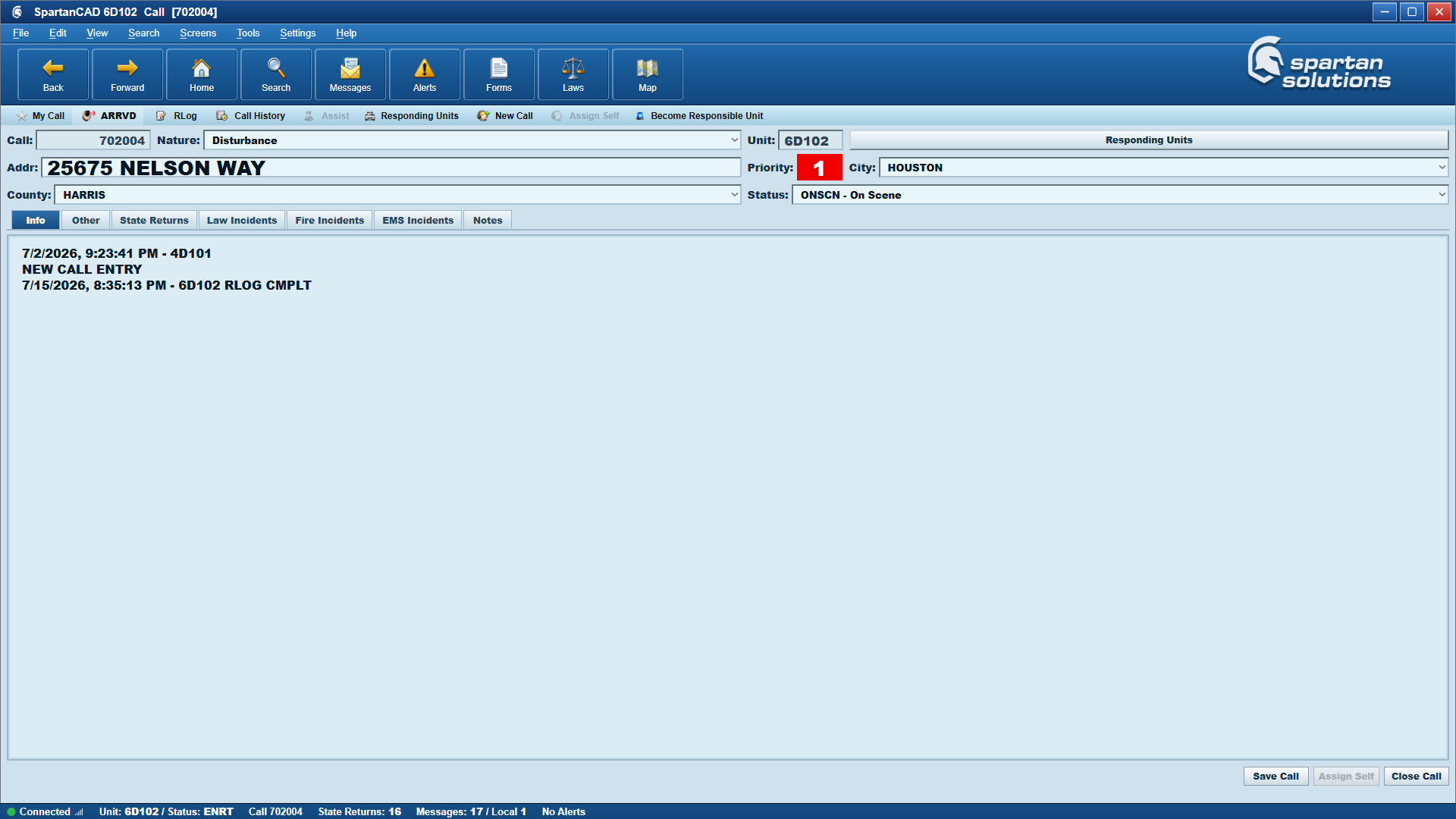
Use it to:
- Review call nature, incident number, address, and notes.
- Attach or review state returns.
- Work Info, Other, Law, Fire, EMS, Names, Premises, Hazmat, and Notes tabs when available for the selected call type.
- Assign yourself or become responsible unit.
- View responding units.
- Assist another unit.
- Add comments and complete the call.
The Notes tab keeps the call note log and note entry together. Notes sent from the MDC are added to the call history and can be reviewed by dispatch and other units according to community permissions.
Searches And Returns
The MDC supports name, vehicle, and gun searches. Search results can be saved locally, forwarded, added to a report, linked to a call, deleted, or cleared.
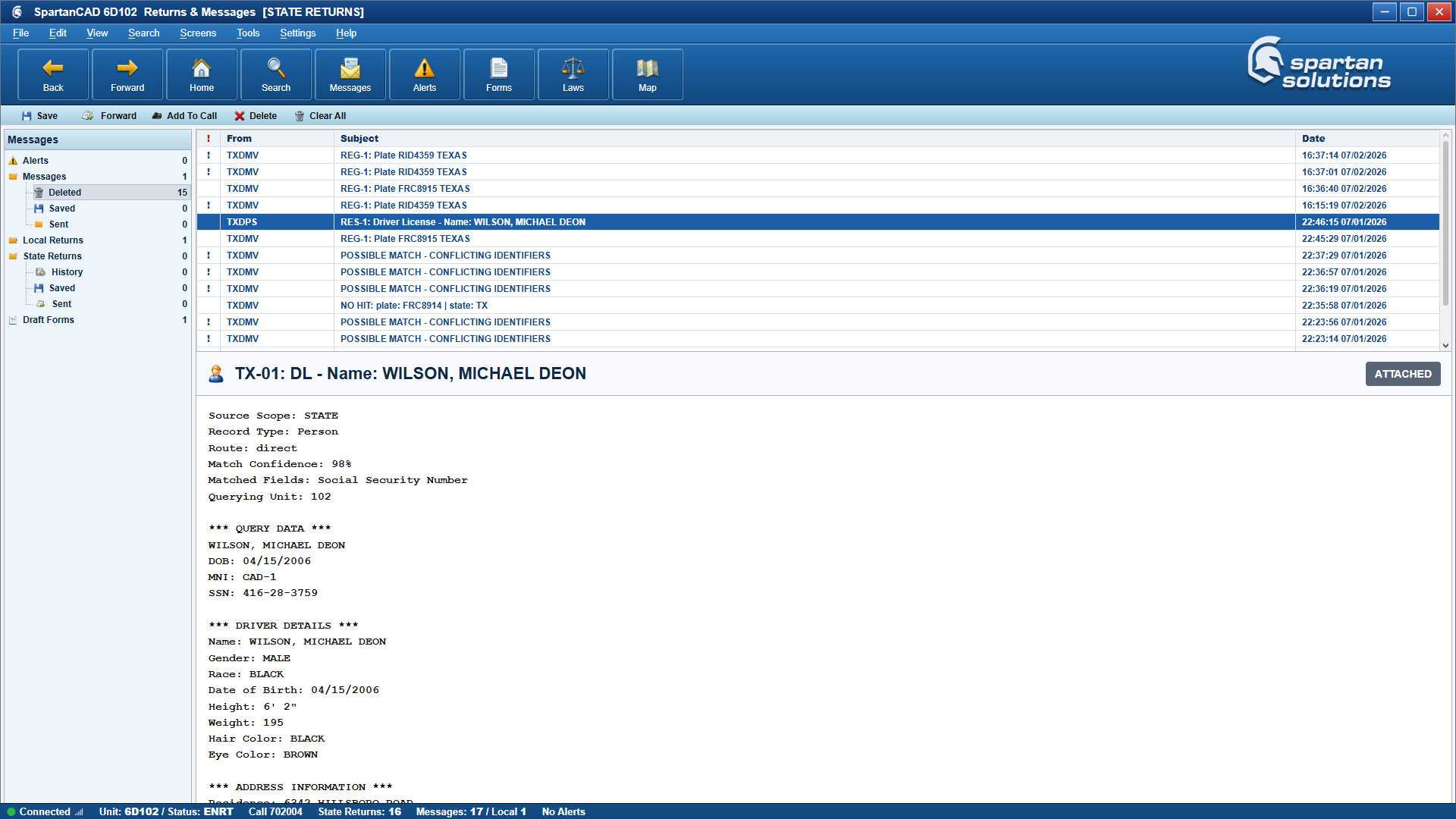
Return actions include:
| Action | What It Does |
|---|---|
| Save | Keeps the return in the local MDC session. |
| Forward | Sends the return to another destination when available. |
| Add To Call | Links the return to the selected active call. |
| Add To Report | Imports return data into a report record. |
| Comment | Adds a comment to the return in the active MDC session. |
| Print / Save PDF | Exports the return as a PDF-style record. |
| Delete | Removes the selected return from the local list. |
| Clear All | Clears the local return list. |
Use return comments and call links within your active MDC session. Save important incident details in the call notes or report record.
Alerts And Flagged Returns
The MDC only shows the alert/warning banner when a return contains an actual alert condition, such as stolen, wanted, no insurance, BOLO, suspended, revoked, expired, or another community-configured flag. Clear returns should stay in returns/history without being promoted to alerts.
Wanted alerts summarize warrant records in this format:
[WARRANT TYPE] - [CHARGE/OFFENSE(S)]If a warrant has several charges, the alert summarizes up to the first three charges. The warrant record label remains linked, and double-clicking the linked record opens the submitted form.
Report Records Workspace
The Report Records Workspace is used to search, write, autosave, complete, reopen, and print report forms.
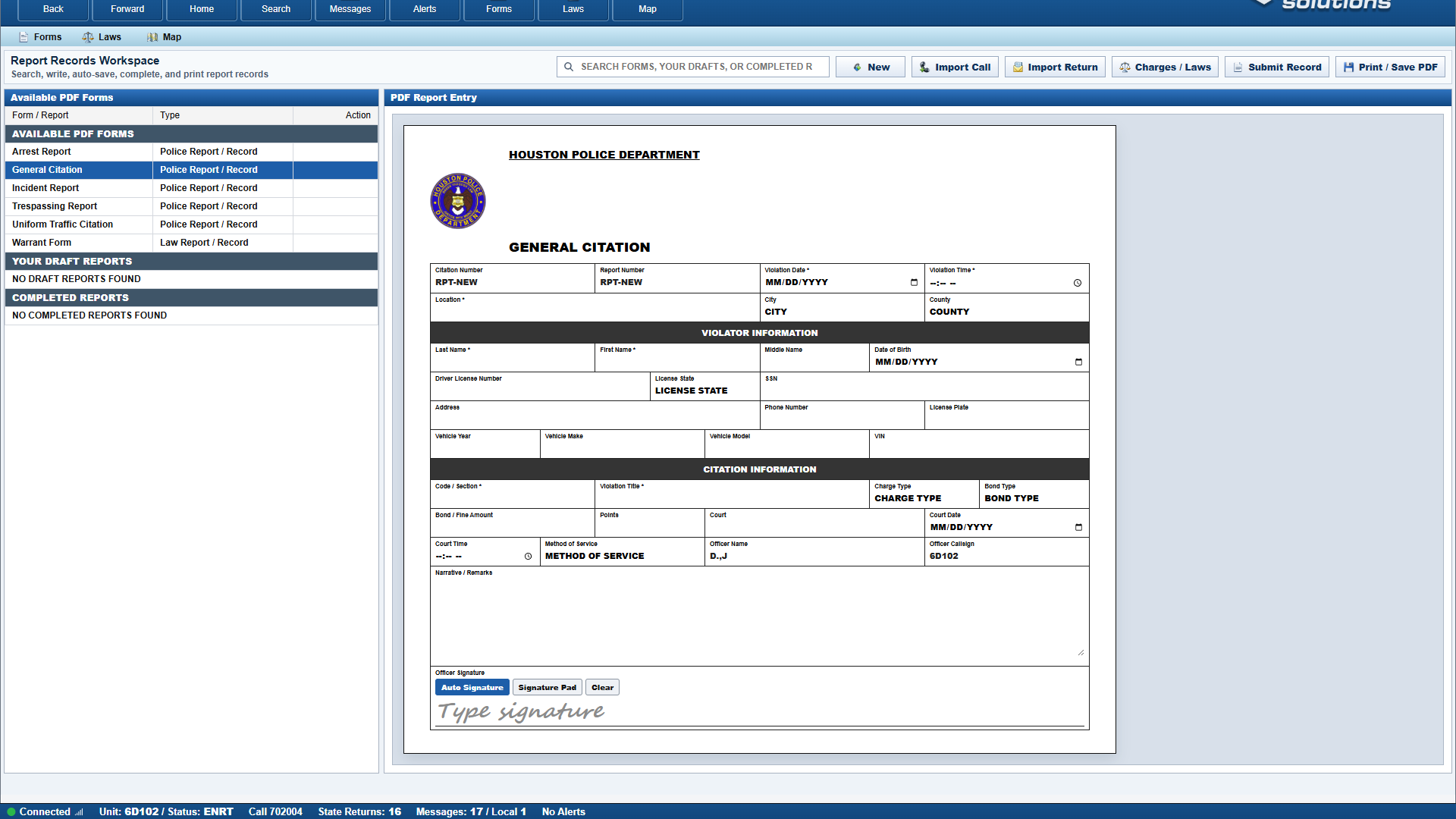
Primary tools include:
| Tool | What It Does |
|---|---|
| Available PDF Forms | Starts a new report from a configured form template. |
| Draft Reports | Reopens incomplete report records. |
| Completed Reports | Reopens submitted records for review or printing. |
| New | Starts a new record. |
| Import Call | Pulls active call details into the report. |
| Import Return | Pulls selected return data into the report. |
| Charges / Laws | Opens charge and statute lookup. |
| Submit Record | Completes the report and runs configured automated actions. |
| Print / Save PDF | Exports the record for saving or printing. |
Draft records autosave shortly after editing. Completed records can be searched and reopened from the workspace.
Message Center
The Message Center contains alerts, messages, deleted messages, saved messages, sent messages, local returns, state returns, history, saved returns, sent returns, and draft forms.
Message Center icons help distinguish folders and message types quickly during active scenes.
CAD Map
The CAD map supports normal and postal layers, units and calls toggles, zoom/pan, route-to-call, and mark-arrived actions.
Map behavior is controlled by CAD admin settings:
- Unit update interval.
- Stale unit timeout.
- Map bounds.
- Unit and call sync toggles.
- Detected FiveM servers.
If live unit markers appear offset, confirm the map bounds and complete a live calibration pass with units at known coordinates.
Sounds And Preferences
MDC preferences include dark mode and event sound toggles. Search returns can play sequenced voice-style result sounds when the community has the matching audio assets available.
CAD update sounds are intended for relevant incoming CAD activity. Self-initiated status changes and self-attachment actions should not play the CAD update received sound.
If sounds do not play, check browser autoplay permission, the selected audio output device, and the MDC sound settings.
Troubleshooting
| Issue | What To Check |
|---|---|
| Callsign is missing | Confirm the member has an approved callsign or that custom callsigns are enabled. |
| MDC pre-fills but stays locked | Click Select Sign In; saved sessions do not auto-unlock the workstation. |
| Cannot assign to a call | Confirm the unit is ONDT, AVAIL, or otherwise allowed by community status policy. |
CMPLT does not close a call | Confirm the unit is assigned to the call and complete the disposition popup. |
| Return cannot add to call | Use Select Call first or confirm an active call is available. |
| Report does not submit | Fill required fields and confirm automated-action target civilian data is present when needed. |
| Map markers are stale | Check FiveM live map sync, detected server status, update interval, and stale timeout. |