In-game Radio
Use the Spartan Radio in-game interface, including codeplugs, zones, channels, PTT, scanning, emergency mode, GPS, listeners, and troubleshooting.
Using The In-game Radio
The in-game radio is the player-facing Spartan Radio interface inside FiveM. It is used to select a codeplug, power the radio, move between zones and channels, transmit with push-to-talk, monitor scanned channels, trigger emergency mode, and view current listeners.
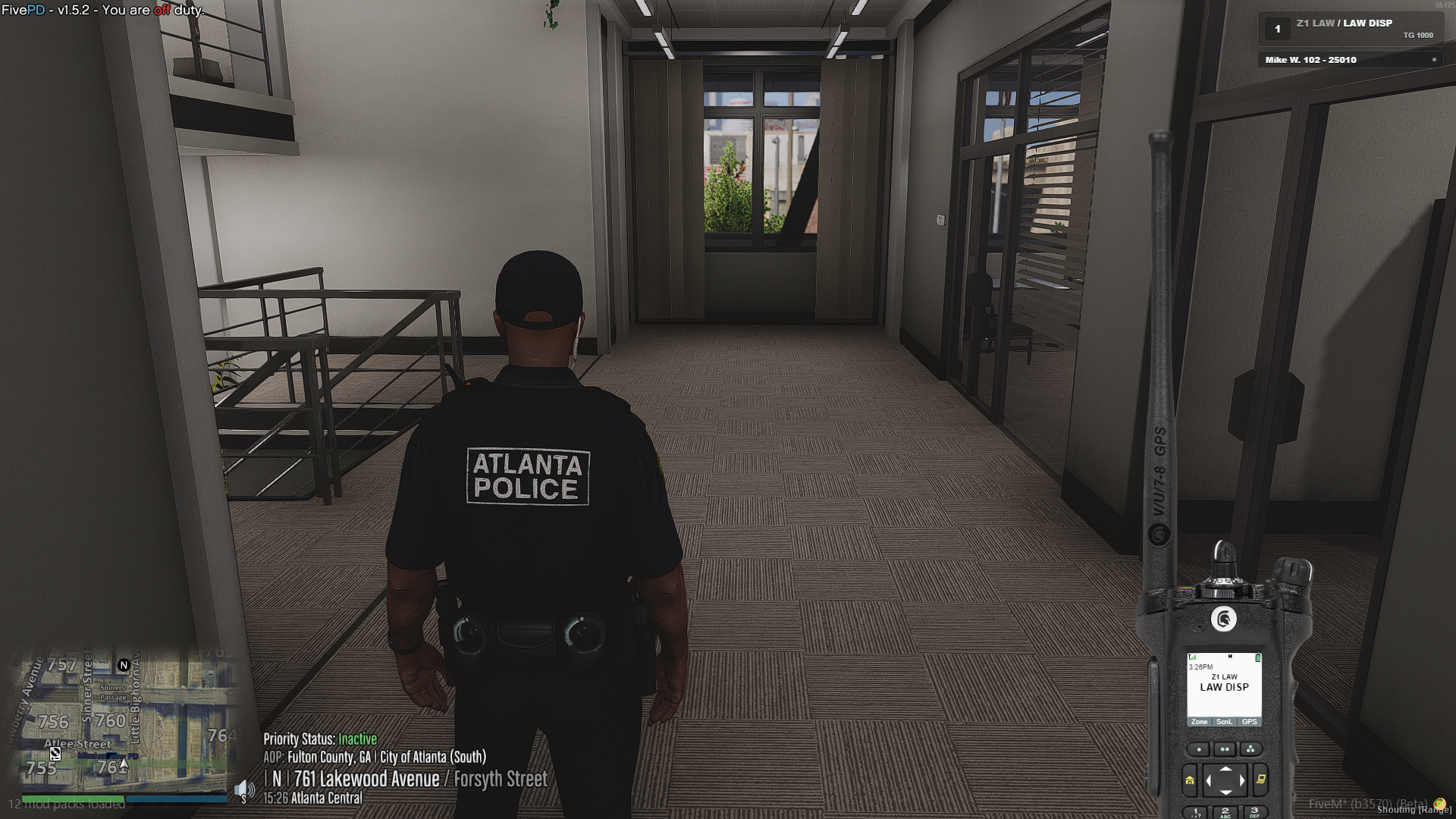
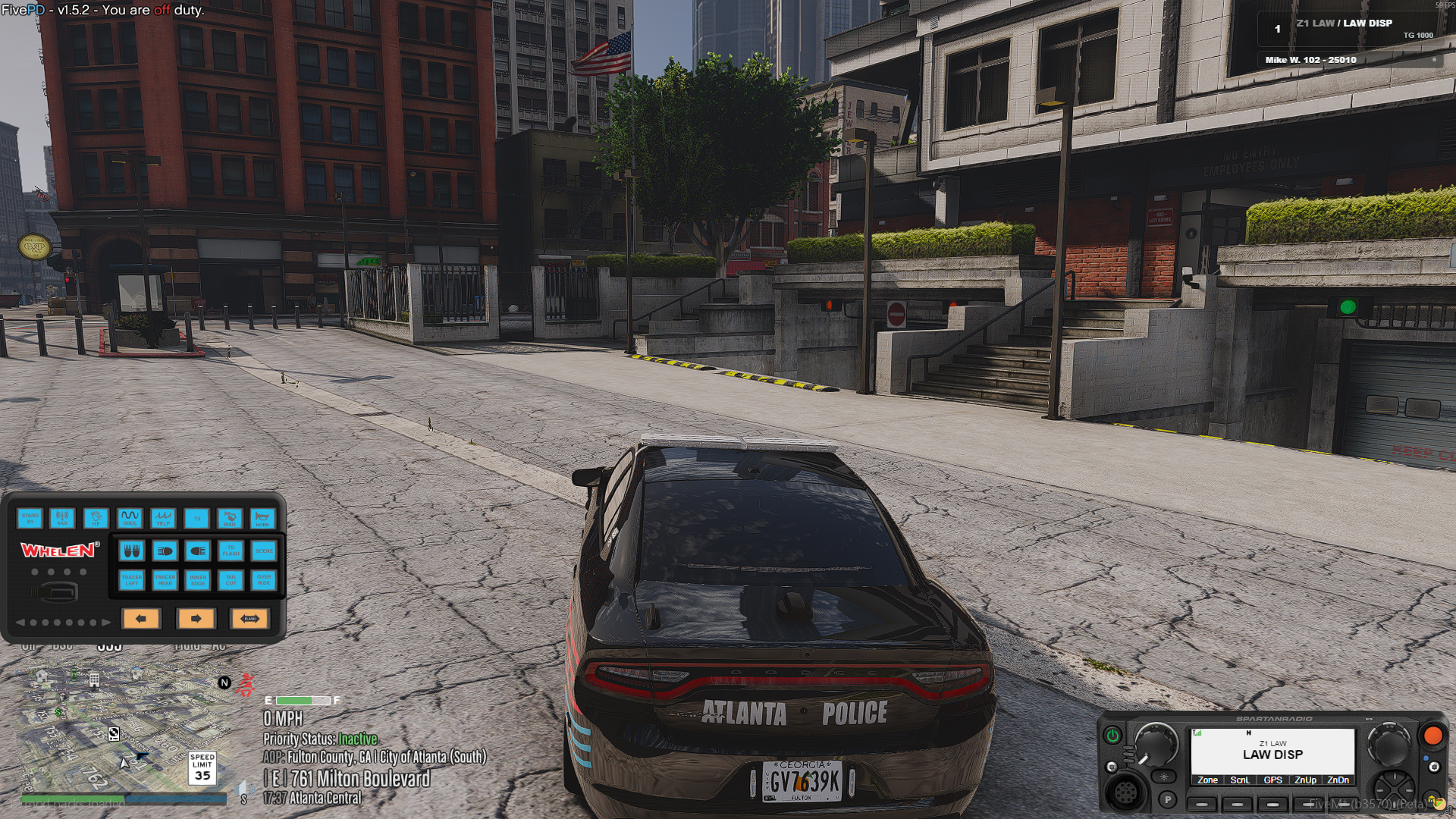
The radio layout changes based on the radio model selected by the server or RMS codeplug. On foot, players normally see a handheld radio. When the player is the driver of a supported emergency, boat, helicopter, or aircraft vehicle, the interface can switch to a mobile radio.
Before You Start
Make sure the server has already started the Spartan Radio resource and that the community profile is saved in RMS. Players need an allowed codeplug with zones and channels, unless the POC has enabled codeplug bypass.
Depending on the server configuration, radio access may require one of the following:
- A radio item in inventory.
- A job or department permission.
- An ACE permission.
- A specific codeplug permission.
If the radio opens but says there is no valid codeplug, select a codeplug or ask a server administrator to confirm your department profile is configured in RMS.
Default Controls
These are the default keybinds from the resource config. Players can change them in FiveM keybind settings.
| Control | Default | What It Does |
|---|---|---|
| Focus UI | F10 | Opens mouse/keyboard focus so you can click the radio buttons. |
| Show/Hide UI | F7 | Shows or hides the radio on screen. |
| Push To Talk | F3 | Hold to transmit on the selected channel. |
| Emergency Button | F9 | Hold for 2 seconds to activate by default; press again to clear. |
Additional keybinds are available but are unbound by default, including power toggle, zone up/down, channel up/down, volume up/down, control lock, and programmable button 1 through 5.
If a default key conflicts with another script, open FiveM keybind settings and remap the Spartan Radio binding.
Quick Start
- Press
F7to show the radio. - Press
F10to focus the radio if you want to click its buttons. - Select a codeplug if your server requires one.
- Press the power button or use
/radio on. - Select the correct zone and channel.
- Hold
F3to transmit. - Release
F3when you are done talking. - Press
ESCto close radio focus.
Showing, Focusing, And Moving The Radio
Showing the radio and focusing the radio are different actions.
| Action | Use It For |
|---|---|
F7 | Show or hide the visual radio interface. |
F10 | Focus the radio so you can use its buttons and menus. |
ESC | Close focus or save move mode. |
/radio top [on/off] | Request compact top view or return to automatic display behavior. |
/patch / /radio patch | Toggle Simplex / Duplex mode on an eligible channel, with permission. |
/movelisteners / /radio movelisteners | Drag the listener panel; Escape saves its position. |
/radio move | Drag and resize the radio UI. |
/radio resetui | Reset the radio position and size. |
In move mode, drag the radio to reposition it and use the mouse wheel to resize it. Press ESC to save the placement.
While the radio is focused or in move mode, the resource blocks firing and some combat controls so you do not accidentally shoot while clicking the radio.
Power And Codeplugs
A codeplug is the radio profile that decides which zones and channels your radio can use. Most communities create separate codeplugs for departments, such as law enforcement, fire, EMS, command, or interop.
Use one of these commands to select a codeplug:
/radio codeplug LSPD
/radio cp SAFR
/radio checkout Command
/setRadioCodeplug SAFR
You can also use /radiomenu or /spartanradio_menu if the server has ox_lib running. The menu includes Select Codeplug, power, zone, channel, listeners, UI movement, panic, and refresh actions.
Once a codeplug is selected, power the radio with one of these methods:
- Click the radio power button.
- Use
/radio on. - Use
/radio offto power down. - Bind
Spartan Radio: Power Togglein FiveM keybind settings.
If only one codeplug is available, powering on may automatically load the first available codeplug.
If a selected codeplug has no assigned zones, or if RMS has no saved zones/channels, the radio cannot operate until the profile is fixed.
Codeplug Bypass
Some release 3.1.2 and newer server configurations can enable codeplug bypass. When enabled, players can access the radio without selecting a codeplug first.
If your community uses department-specific channel banks, radio models, or strict permissions, administrators should keep normal codeplug selection enabled.
Handheld And Mobile Radios
Handheld radios are used when you are on foot, riding as a passenger, or driving a normal unsupported vehicle.
Mobile radios are used when the resource detects that you are the driver of a supported vehicle type, including emergency vehicles, boats, helicopters, and aircraft. Mobile radios can use a different skin from handheld radios, especially when RMS codeplugs override the default radio model.
Compact Top View
APX8000, APX7000, and APX8000-HXE support a compact top display. Use /radio top on to request it or /radio top off to return to the server's automatic setting. /radio top toggles the request. If you forced top view on, run /radio top off, then press F10 for full controls. Top view is not available on every radio model.
Radio Display And Icons
The radio screen shows the current operating state.
| Display Item | What It Means |
|---|---|
| Zone line | Current RMS zone or bank. |
| Channel line | Current channel or talkgroup. |
| Clock | Current in-game time. |
| RSSI bars | Current signal strength when tower simulation is enabled. |
| TX RSSI icon | Your radio is transmitting. |
| RX RSSI icon | Another radio is being received. |
| Lock icon | Current channel is marked secure. |
| Scan icon | Current channel is scanned, or scan traffic is active. |
| Muted icon | Radio receive volume is muted. |
| Battery icon | Battery level, if battery simulation is enabled. |
| GPS icon | A GPS route is active or being updated. |
| Out of Range | The radio has no usable signal. |
The LEDs also communicate state. A red TX light means you are transmitting. A receive light means another radio is active. A green or flashing scan light means scan behavior is active.
Physical Radio Buttons
When the radio has focus, you can click the on-screen radio buttons.
| Button | What It Does |
|---|---|
| Power | Turns the radio on or off. |
| Emergency | Toggles emergency mode. |
| Home | Closes the current radio menu. |
| Menu | Opens or closes the soft-key menu. |
| Volume Up / Down | Changes receive volume. Holding repeats the change. |
| Channel Up / Down | Moves through channels in the current zone. |
| Direction Up / Down | Moves through zones when not in a list, or moves through menu entries when a list is open. |
| Direction Left / Right | Moves between soft-key pages. |
| Programmable 1-5 | Selects the soft-key label shown at the bottom of the screen. |
Soft-key Menu
Press the radio Menu button to open the soft-key controls at the bottom of the display. Use the left and right directional buttons to switch pages.
| Label | Action |
|---|---|
Zone | Opens the zone list. |
ScnL | Opens the scan list. |
GPS | Starts GPS routing to the most recent radio target, if one can be resolved. |
ZnUp | Moves to the next zone. |
ZnDn | Moves to the previous zone. |
Scan | Adds or removes the current channel from scan. |
Chan | Opens the channel list for the current zone. |
Mute | Sets receive volume to zero. |
Pwr | Powers the radio off. |
When a list is open, the soft keys change:
| Label | Action |
|---|---|
Sel | Selects the highlighted zone/channel, or toggles a scan entry. |
Rem | Removes a highlighted scan-list entry. |
Back | Returns to the main menu. |
Exit | Closes the scan list. |
Zones And Channels
Zones group channels into banks. Channels are the talkgroups or conventional channels you actually use for radio traffic.
You can change zones and channels in several ways:
- Use the channel up/down buttons to change channels.
- Use directional up/down to change zones when no list is open.
- Open
Zonefrom the soft-key menu and select a zone. - Open
Chanfrom the soft-key menu and select a channel. - Use
/radio zone [zone]. - Use
/radio channel [channel]or/radio talkgroup [channel].
The command value can be an index number, ID, TGID, or exact name depending on what you are selecting.
Examples:
/radio zone 2
/radio channel 1001
/radio talkgroup FIRE TAC-1
Push To Talk
Hold F3 to transmit on your selected channel. Release it to stop transmitting.
When PTT starts, the radio plays a transmit tone and shows transmit state. When you release, the resource waits briefly before ending the transmission so audio does not cut off unnaturally.
PTT can be denied if:
- The radio is powered off.
- No codeplug or channel is selected.
- The radio is out of range.
- The radio is inhibited or stunned by dispatch.
- The player is fully submerged underwater.
- The PTT spam or hot-mic protection is active.
The default hot-mic auto cutoff is 45 seconds. If a transmission runs too long, the server can force release PTT and notify the player.
Volume And Mute
Radio receive volume uses a 0 to 15 scale.
Ways to change volume:
- Click volume up/down.
- Hold volume up/down to repeat.
- Use
/radio volume [0-15]. - Use the
Mutesoft key to set volume to0.
If volume down goes below 0, the radio powers off. If you are muted or at volume 0, you may still be connected to the channel, but you will not hear received radio audio.
Scanning Channels
Scanning lets you monitor channels without leaving your selected transmit channel.
Use scanning when you need to hear a secondary dispatch, tac, or interop channel while staying parked on your main channel.
To scan the current channel:
- Select the channel you want to monitor.
- Open the soft-key menu.
- Press
Scan.
You can also use:
/radio scanTo manage the scan list:
- Open the soft-key menu.
- Press
ScnL. - Highlight a channel.
- Press
Selto add or remove it. - Press
Remto remove an entry. - Press
Exitwhen finished.
The scan icon appears when the current channel is scanned. It flashes when scan traffic is being received.
Scanning does not change your transmit channel. PTT still transmits on your selected channel, not on whichever scanned channel is currently active.
Listener Panel
The listener panel shows who is on the current channel and whether anyone is talking.
Use:
/togglelisteners
/radio togglelisteners
You can also print the current channel listeners as a notification:
/radio listenersThe listener panel remembers whether it was shown or hidden independently of the radio frame. Use /movelisteners or /radio movelisteners, drag the panel, and press Escape to save its position.
Emergency Mode
Emergency mode is used for panic or officer/firefighter down workflows.
With the default hold setting, hold F9 or the on-screen emergency button for 2 seconds. Releasing early cancels activation. If your POC disables the hold setting, a press activates immediately.
/radio panic and the menu panic action prompt you to use the hold control when hold is enabled; they do not bypass it. They can clear an existing panic.
When emergency mode starts, the radio sends an emergency event, plays the emergency tone, displays Emergency, and briefly hot-mics the radio so nearby units and dispatch can hear the emergency. The default emergency hot-mic time is 8 seconds. The default panic cooldown is at least 30 seconds.
Press the emergency button again, or use /radio clearpanic, to clear your emergency state.
Use emergency mode only for actual emergency traffic or community-approved roleplay scenarios. It is intentionally disruptive and visible to dispatch.
GPS From Radio Traffic
The GPS soft key can route you to a recent radio target when the radio can resolve that target to an active player.
This is most useful after:
- A recent transmission from another radio.
- An incoming emergency alert.
- A dispatcher or unit event that provides a radio ID.
If the radio cannot resolve the target, it will notify you that GPS is unavailable.
Radio Map Blips
If enabled by the server, powered radios with valid codeplugs appear as map blips. Blips can change color by codeplug and can use a transmit color while a unit is talking.
Some servers may show only users on the same codeplug, or show blips only while you are in a vehicle. If you do not see radio blips, the feature may be disabled or restricted by server configuration.
Signal, Towers, And Range
If tower signal simulation is enabled, the RSSI bars reflect your distance from configured radio towers.
| Signal State | What It Means |
|---|---|
| 4 bars | Strong signal. |
| 3 bars | Usable signal. |
| 2 bars | Weaker signal. |
| 1 bar | Poor signal. |
Out of Range | No usable tower coverage. |
When out of range, the radio cannot transmit or receive normally. Move closer to a tower coverage area or contact staff if the map appears to have missing tower coverage.
The radio is also disabled while fully submerged underwater.
Battery Simulation
If battery simulation is enabled, handheld radios lose charge over time. Mobile radios can recharge while powered on in supported vehicles.
At very low battery, the radio can flash a critical battery indicator and play warning tones. At 0%, the radio powers off until recharged.
Servers may allow:
/radio rechargeProximity Audio Broadcasting
If Proximity Audio Broadcasting is enabled, received radio audio can be heard by nearby players around your character, similar to audio coming from a real speaker or shoulder mic.
You can locally disable or re-enable PAB with:
/radio pab disable
/radio pab enable
A configured earpiece or clothing rule may also mute your proximity broadcast while worn.
If native voice on PTT is enabled by the server, keying the Spartan Radio PTT can also key local FiveM voice while you transmit.
Audio Input Selection
With ox_lib running, the radio menu includes Microphone Input. Use it when the radio is hearing the wrong microphone, a virtual cable, or no input at all.
- Open
/radiomenuor/spartanradio_menu. - Open the audio input option.
- Select the microphone or input device you want the radio to use.
- Test PTT on a non-critical channel.
Callsigns And Radio IDs
By default, the radio ID is based on the player's server ID. For example, server ID 42 becomes radio ID 25042.
If callsigns are enabled by the server, a player may be able to set one with:
/radio callsign 1A12Some server configurations can also set a callsign or radio ID from another trusted resource.
Animation Styles
If radio animations are enabled, players can choose between available transmit animations:
/radio anim 1
/radio anim 2
/radio anim 3
Style 1 uses a standard radio chatter animation. Style 2 uses a chest mic animation. Style 3 uses a handheld radio prop animation.
Your selection is saved locally. If your POC configured clothing-based animation styles, matching gear can temporarily override it.
Simplex / Duplex Patching
On a channel configured in RMS for Simplex / Duplex (Patching), use /patch or /radio patch to toggle your radio's mode. The radio must be usable and on an eligible channel; the POC may also require patch permission. This toggles your radio's duplex permission on its current eligible channel. It does not join multiple channels or change every unit's mode. Follow your community's dispatch procedures.
To create a patch connecting several channels, use the Dispatch Console.
Command Reference
| Command | What It Does |
|---|---|
/radio top [on/off] | Request compact top view or return to automatic display behavior. |
/patch / /radio patch | Toggle Simplex / Duplex mode on an eligible channel, with permission. |
/movelisteners / /radio movelisteners | Drag the listener panel; Escape saves its position. |
/radio move | Enables drag and zoom mode for the radio UI. |
/radio resetui | Resets radio position and size. |
/radio refresh | Reloads radio config and rejoins the active channel. |
/radio clearpanic | Clears the current emergency state. |
/radio listeners | Prints current channel listeners. |
/radio togglelisteners | Shows or hides the listener panel. |
/radio panic | Clears active panic, or requests activation; prompts for a hold when required. |
/radio on | Powers the radio on. |
/radio off | Powers the radio off. |
/radio codeplug [name] | Selects a codeplug. |
/radio cp [name] | Short alias for codeplug selection. |
/radio checkout [name] | Alternate alias for codeplug selection. |
/setRadioCodeplug [name] | Legacy codeplug selection command. |
/radio zone [value] | Selects a zone by index, ID, or name. |
/radio channel [value] | Selects a channel by index, TGID, or name. |
/radio talkgroup [value] | Alias for channel selection. |
/radio volume [0-15] | Sets receive volume. |
/radio scan | Toggles scan for the current channel. |
/radio recharge | Recharges battery if the server allows it. |
/radio pab enable | Enables local Proximity Audio Broadcasting. |
/radio pab disable | Disables local Proximity Audio Broadcasting. |
/radio callsign [value] | Sets your callsign if command callsigns are enabled. |
/radio anim [1-3] | Changes radio animation style. |
/radiomenu | Opens the ox_lib radio menu if available. |
/spartanradio_menu | Opens the same ox_lib radio menu. |
/togglelisteners | Shows or hides the listener panel. |
Optional Keybind Actions
These actions can be bound in FiveM keybind settings if your community wants faster radio control.
| Keybind Name | Action |
|---|---|
Spartan Radio: Power Toggle | Toggle radio power. |
Spartan Radio: Zone Up | Move to the next zone. |
Spartan Radio: Zone Down | Move to the previous zone. |
Spartan Radio: Channel Up | Move to the next channel. |
Spartan Radio: Channel Down | Move to the previous channel. |
Spartan Radio: Volume Up | Increase receive volume. |
Spartan Radio: Volume Down | Decrease receive volume. |
Spartan Radio: Lock Controls | Locks or unlocks radio controls. |
Spartan Radio: Programmable Button 1-5 | Activates the matching soft-key slot. |
Troubleshooting
| Issue | What To Check |
|---|---|
| Panic does not activate on a tap | Hold the emergency button/key for 2 seconds; check power and cooldown. |
| Top view does not appear | Use a supported handheld model. Automatic top view appears when unfocused; /radio top on forces it. Mobile and other models do not use that layout. |
| Radio does not appear | Press F7, confirm the resource is started, and confirm the player has radio access. |
| Cannot click the radio | Press F10 to focus the UI. Press ESC to exit focus. |
No valid codeplug is set for this radio. | Select a codeplug with /radio cp [name], or confirm RMS has a saved codeplug. |
| Codeplug not found | Use the exact codeplug name or ID from RMS. |
| No zones or channels | Confirm the codeplug has zone IDs, and that those zones contain channels in RMS. |
| PTT does nothing | Power on, select a channel, check keybinds, and make sure you are not out of range, stunned, submerged, or in cooldown. |
Fail Code 01-03 | Configuration could not be loaded or is missing zones, channels, or codeplugs. |
Fail Code 01-04 | You hit a temporary restriction, such as PTT spam protection or panic cooldown. |
Fail Code 03-02 | Dispatch or an administrator inhibited the radio. |
| Out of range | Move closer to tower coverage or ask staff to review tower placement. |
| Cannot GPS a unit | The radio has no recent target, or the target radio ID cannot be resolved to an active player. |
| No radio audio | Raise volume, unmute the radio, check your game audio device, and confirm you are on or scanning the right channel. |
| Wrong microphone is used | Open the radio menu and switch the audio input device. |
| Listener panel is empty | Confirm you are powered on and on a channel with other active radios. |
| Map blips missing | Confirm radio blips are enabled, your radio is powered, and same-codeplug-only mode is not hiding other users. |
Recommended Player Flow
- Show the radio with
F7. - Select your department codeplug.
- Power the radio on.
- Choose the correct zone and dispatch channel.
- Set volume to a comfortable level.
- Add secondary channels to scan only when needed.
- Use PTT for normal traffic.
- Use emergency mode only when policy allows it.
- Hide or move the UI once it is set up.
Community Profile Setup (RMS)
Configure your Spartan Radio community profile, administrators, zones, channels, codeplugs, tones, and raw JSON through the Radio Management System.
Dispatch Console
Operate the Spartan Dispatch Console, monitor channels, transmit, send automated calls, manage patches, and handle unit activity.