Dispatch Console
Operate the Spartan Dispatch Console, monitor channels, transmit, send automated calls, manage patches, and handle unit activity.
Using the Dispatch Console
The Spartan Dispatch Console is the web panel used by dispatchers to monitor the radio system, talk on channels, send automated callouts, manage temporary patches, and follow unit activity in real time.
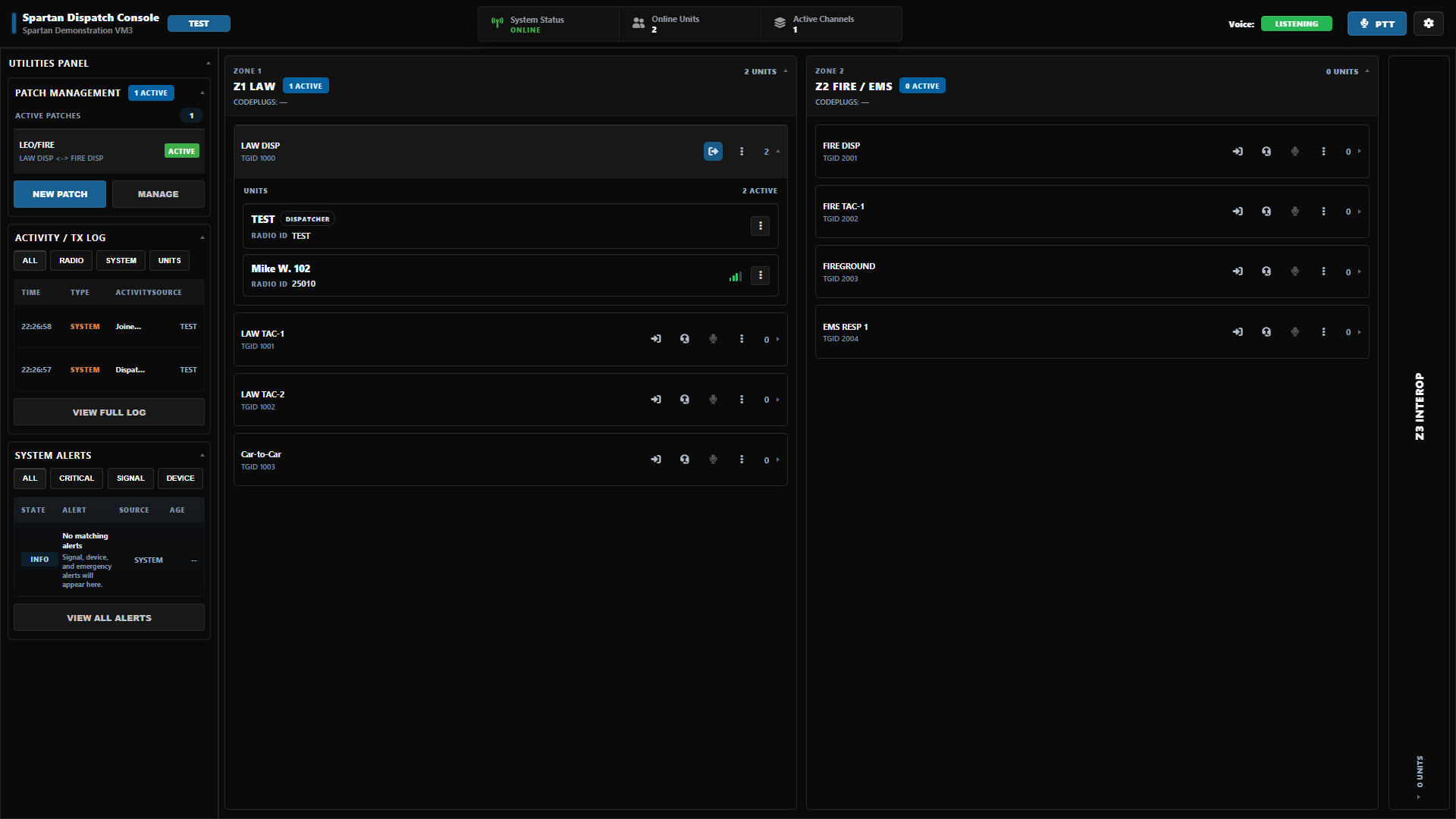
The console is designed for live operations. Use it on a desktop browser when possible, keep one active console tab open per dispatcher, and use a headset or dedicated microphone for the cleanest audio.
Before You Start
You need three things before opening the console:
- A dispatcher callsign, such as
1A1,DISP1, orFIRECOM. - A Dispatch Access Code from your community administrator.
- Browser permission for microphone and audio playback.
The access code is generated from the community abbreviation and the last segment of the license key. For example, if the community abbreviation is SOGRP and the license ends in CG3JD, the dispatch code will look like:
SOGRP-CG3JDIf your access code does not work, ask a community administrator to confirm that the RMS profile is saved, the community abbreviation is correct, and dispatch authorization is enabled for the license.
Login
- Open the Dispatch Console URL provided by your community.
- Enter your
Callsign. - Enter the
Dispatch Access Code. - Click
OPEN CONSOLE. - Allow microphone access if your browser asks for it.
Your callsign is shown in the top bar after login. The console will remember your session and settings for a short time, but you should use LOGOUT from settings when you are finished with a dispatch session.
Console Layout
The top bar gives you the current operating state:
| Area | What It Means |
|---|---|
| Community label | The RMS community profile currently loaded by the console. |
| Callsign badge | The dispatcher callsign used for logs and transmissions. |
| System Status | Shows whether the console is connected to the radio network. |
| Online Units | Number of currently connected units. |
| Active Channels | Number of channels with active console or unit activity. |
| Voice state | Shows whether you are listening or transmitting. |
| PTT button | Push-to-talk button for your active talk channel. |
| Settings | Opens callsign, keybind, volume, and logout options. |
Use the channel search field to find channels, callsigns, or radio IDs. The main channel area is organized by RMS zones. Each zone contains its channels, unit cards, and channel controls. The utilities panel contains patch management, the activity log, and system alerts.
Channels
Each channel row represents a radio channel or talkgroup from RMS.
Common controls are:
| Control | Use It For |
|---|---|
| Join talk channel | Makes this your primary transmit channel. The top PTT button and your PTT key will transmit here. |
| Leave talk channel | Clears your active transmit channel. |
| Scan channel | Monitors the channel without making it your primary talk channel. |
| Stop scanning | Stops listening to that channel. |
| Channel mic | Transmits only on that scanned channel. |
| Channel menu | Opens patch, scan, channel hold, emergency tone, and automated call actions. |
Active Talk Channel vs Scanned Channel
An active talk channel is your main dispatch channel. When you hold the top PTT button or your PTT key, audio is sent to that channel.
A scanned channel is a monitored channel. You can listen to several scanned channels at once. If you need to speak on a scanned channel, use that channel's mic button.
If the console says Scan this channel before using channel PTT, click the scan control for that channel first, then use the channel mic button.
Transmitting
- Join the channel you want as your main talk channel, or scan a channel if you only need temporary access.
- Hold your PTT key or the top
PTTbutton to transmit on the active talk channel. - Use a channel's mic button to transmit on that specific scanned channel.
- Release PTT when you are done speaking.
The default PTT key is T. You can change it in Console Settings.
The console will prevent overlapping transmissions when another unit or dispatcher is already talking. If your transmission does not start, check whether the channel is busy, whether your microphone permission is blocked, or whether you joined/scanned the right channel.
Voice Models And Audio Processing
The console follows the voice model saved in RMS for the selected community profile.
| RMS Voice Model | Console Behavior |
|---|---|
| Legacy Mode | Uses the lighter legacy radio filter path. |
| Standard Vocoding | Uses the standard digital radio processing path. |
| Enhanced Vocoding | Uses the enhanced digital processing path. |
| Advance Vocoding | Uses the newest audio gate, suppression, and vocoding behavior. |
If the wrong audio style is heard in dispatch, confirm the RMS profile is saved and refresh the console session.
Unit Cards
Unit cards show who is online and where they are operating. A unit card may show:
- Display name or radio ID.
- Assigned codeplug.
- Current channel.
- Signal strength.
- Dispatcher or emergency state badges.
Open a unit's action menu to move the unit to another channel or apply radio control actions.
Moving Units
Use move actions when a unit needs to be reassigned to a different dispatch, tac, fireground, or interop channel. Pick the destination channel from the unit menu.
Stun and Unstun
Stun or Inhibit Radio disables a unit radio from normal operation. Unstun or Uninhibit Radio restores it. Treat this like an administrative control, not a routine dispatch tool.
Only stun a radio when your community policy allows it. A stunned unit may not be able to communicate until an authorized dispatcher or administrator restores it.
Automated Calls
Automated calls let dispatch send a preset tone and voice callout over a selected channel. This is commonly used for fire, EMS, and station alerting workflows.
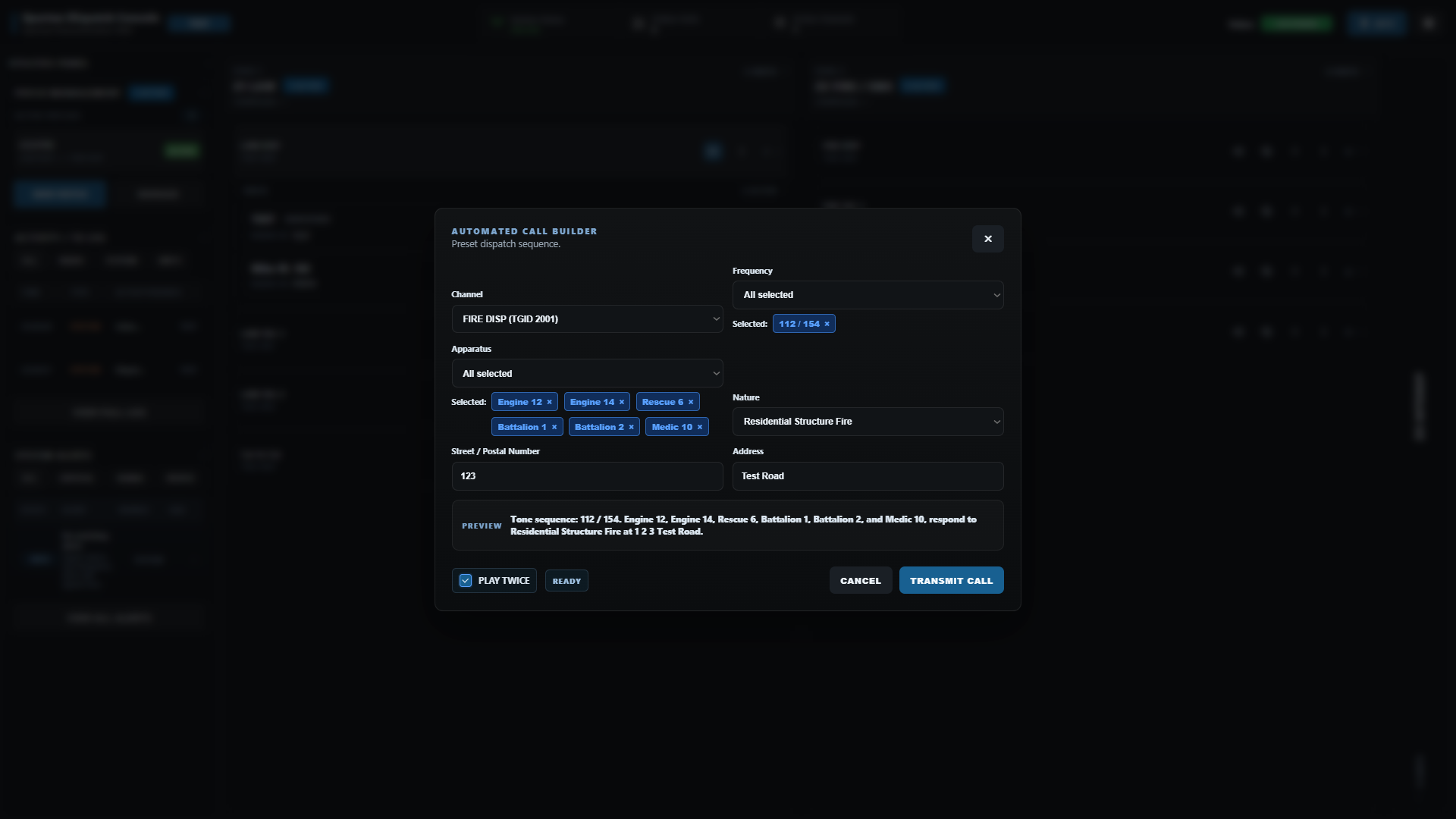
Open a channel menu and choose Automated Call.
Automated Call Fields
| Field | What It Does |
|---|---|
| Channel | The channel where the callout will be transmitted. |
| Frequency | Selects one or more two-tone paging presets. |
| Apparatus | Selects the units or apparatus being dispatched. |
| Nature | Selects the incident type, such as structure fire, medical call, or motor vehicle accident. |
| Street / Postal Number | Optional number used before the address. |
| Address | Location spoken in the automated call. |
| Preview | Shows the spoken callout before it is transmitted. |
| Play Twice | Sends the tone and voice sequence twice. |
| Transmit Call | Sends the automated call over the selected channel. |
Frequency tones, apparatus options, and nature options come from RMS. If a dropdown says there are no presets, that channel does not have matching tones configured for it.
How To Send An Automated Call
- Open the channel menu.
- Click
Automated Call. - Confirm the
Channel. - Select the paging
Frequencyif your community uses two-tone alerting. - Select the
Apparatusbeing dispatched. - Select the incident
Nature. - Enter the street number, postal, or address when needed.
- Check the
Preview. - Enable
PLAY TWICEonly if your dispatch procedure calls for a repeated dispatch. - Click
TRANSMIT CALL.
After a call is sent, the panel enters a short cooldown before another automated call can be transmitted.
Practical Tips
- Use
Frequencyfor the alerting tone or station paging sequence. - Use
Apparatusfor the units being assigned to the call. - Use
Naturefor the incident type. - Use the address fields only for dispatchable location details.
- Check the preview before transmitting, especially on live servers.
Patch Management
Patches connect multiple channels so traffic can be shared across them. Use patches for temporary interop, mutual aid, cross-discipline operations, or events where units on separate channels need to hear the same traffic.
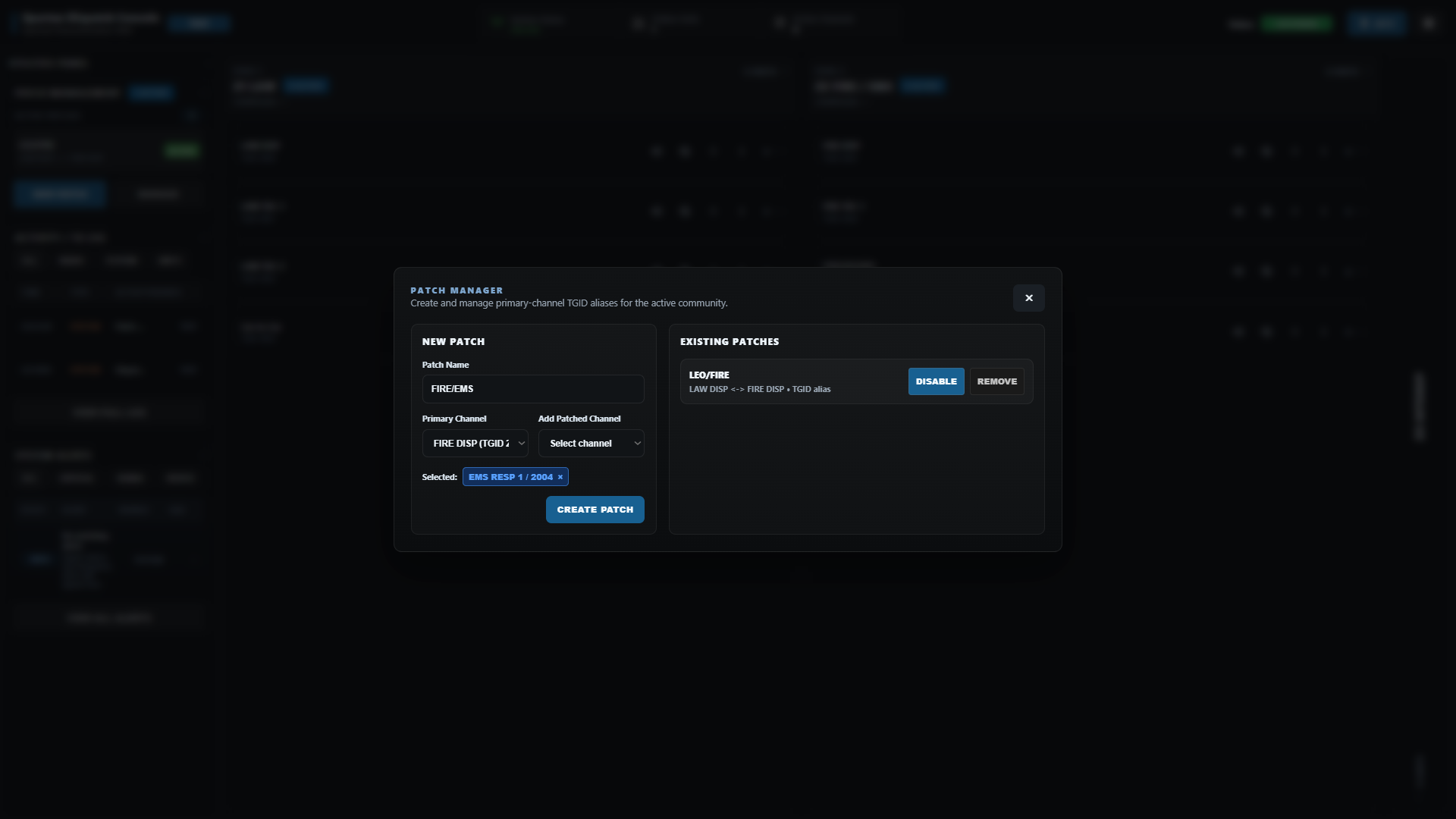
The utilities panel shows active patches and provides quick access to NEW PATCH and MANAGE.
Create A Patch
- Click
NEW PATCHor open a channel menu and chooseCreate Patch. - Enter a
Patch Name, such asCounty Fire Mutual Aid. - Choose the
Primary Channel. - Use
Add Patched Channelto add one or more additional channels. - Review the selected channel chips.
- Click
CREATE PATCH.
The primary channel is the main channel for the patch. Patched channels are the additional channels linked into it. The same channel cannot be both the primary channel and a patched channel.
Manage Existing Patches
Open MANAGE to view existing patches.
| Action | What It Does |
|---|---|
| ENABLE | Turns the patch on. |
| DISABLE | Keeps the patch saved but stops routing traffic through it. |
| REMOVE | Deletes the patch from the active patch list. |
Use DISABLE when you might need the patch again soon. Use REMOVE when the event or incident is over.
Patches are best for temporary interop. For routine monitoring, scan channels instead of creating a patch.
Simplex / Duplex Permissions for Units
On a channel configured in RMS for Simplex / Duplex (Patching), open the unit's action menu and choose Grant Duplex Patch or Remove Duplex Grant. This applies to that radio on the eligible channel. A removed grant returns the unit to dispatcher-relay mode; it does not delete a multi-channel patch.
An authorized in-game user can toggle their own mode with /patch or /radio patch. These controls are separate from creating a patch between several channels.
If the option is missing, confirm the unit is on an eligible channel and the RMS profile was saved. Select the intended unit before granting or removing access.
Channel Hold
Toggle Channel Hold is available from the channel menu. Use channel hold when dispatch needs to temporarily restrict or protect traffic on a busy or priority channel.
When hold is active, dispatchers should clearly announce the hold and release it as soon as the priority traffic is complete.
Emergency Tone And Panic Clearing
The channel menu can send an emergency tone on the selected channel. Use it only for community-approved emergency traffic or priority alerting.
If an active panic/emergency alert is present, the channel menu can also show Clear Emergency Alert. Clearing an emergency removes the dispatcher-visible alert state after the incident has been acknowledged or resolved.
Emergency tones and panic clearing affect live operational awareness. Follow your community policy before sending or clearing these events.
Activity Log
The ACTIVITY / TX LOG panel records console and radio activity.
Use the filters to narrow the log:
| Filter | Shows |
|---|---|
| ALL | All visible activity. |
| RADIO | Transmit start, transmit end, and radio traffic events. |
| SYSTEM | Connection, patch, and console state events. |
| UNITS | Unit movement and unit-related actions. |
The full log is useful when reviewing who transmitted, when a patch was requested, or what action happened during a busy dispatch period.
System Alerts
The SYSTEM ALERTS panel highlights events that may need dispatcher attention.
| Filter | Shows |
|---|---|
| ALL | Every current alert. |
| CRITICAL | High-priority alerts, including emergency traffic. |
| SIGNAL | Signal or reception related alerts. |
| DEVICE | Radio or device state alerts. |
Emergency alerts should be treated according to your community policy. When a unit activates emergency mode, the alert remains visible until the emergency state clears.
Console Settings
Click the gear icon in the top bar to open Console Settings.
| Setting | What It Does |
|---|---|
| Callsign | Updates your dispatcher callsign. |
| PTT Key | Changes the keyboard key used for push-to-talk. |
| SFX Volume | Adjusts alert tones, UI sounds, and console sound effects. |
| Voice Volume | Adjusts received radio voice playback. |
| LOGOUT | Ends the saved console session. |
| SAVE SETTINGS | Saves your local console preferences. |
If audio is too loud, too quiet, or distracting during active scenes, adjust Voice Volume and SFX Volume separately.
Troubleshooting
| Issue | What To Check |
|---|---|
Invalid dispatch access code. | Confirm the community abbreviation, the last license segment, and that dispatch authorization is enabled in RMS. |
Console shows OFFLINE | Refresh the page, confirm your internet connection, and check whether other users in your community can connect; contact your POC if the issue continues. |
| No channels appear | Ask an administrator to confirm zones and channels are configured and saved in RMS. |
| Cannot transmit | Join a talk channel, scan the channel for channel PTT, allow microphone permission, and make sure the channel is not busy. |
| Automated call has no tones | The selected channel may not have RMS tone presets or the tone channel whitelist may not include that channel. |
| Automated call will not send | Select at least one tone or enter enough call details for a spoken dispatch, then wait for the cooldown to finish. |
| Patch will not create | Choose a primary channel, add at least one different patched channel, and provide a patch name. |
| Duplex grant action is missing | Select a unit on a channel with Simplex / Duplex (Patching) enabled in RMS. |
| Emergency alert will not clear | Confirm an active panic exists for that channel or unit and that your dispatcher session is still connected. |
| Radio audio is too quiet or loud | Adjust Voice Volume, browser tab volume, and your Windows output device. |
| Alert or log panel looks empty | Switch the panel filter back to ALL. |
Recommended Dispatch Flow
- Log in with your assigned callsign.
- Confirm
System Statusis online. - Join your primary dispatch channel.
- Scan secondary channels as needed.
- Use the activity log and alerts panel to monitor radio events.
- Use automated calls for structured station or unit dispatching.
- Use patches only for temporary interop.
- Log out when your dispatch session is complete.