Community Profile Setup (RMS)
Configure your Spartan Radio community profile, administrators, zones, channels, codeplugs, tones, and raw JSON through the Radio Management System.
Using the Radio Management System (RMS)
RMS is the POC control panel for the radio community attached to your license key. Save your profile here to make its zones, channels, codeplugs, tones, and audio settings available to in-game radios and dispatch.
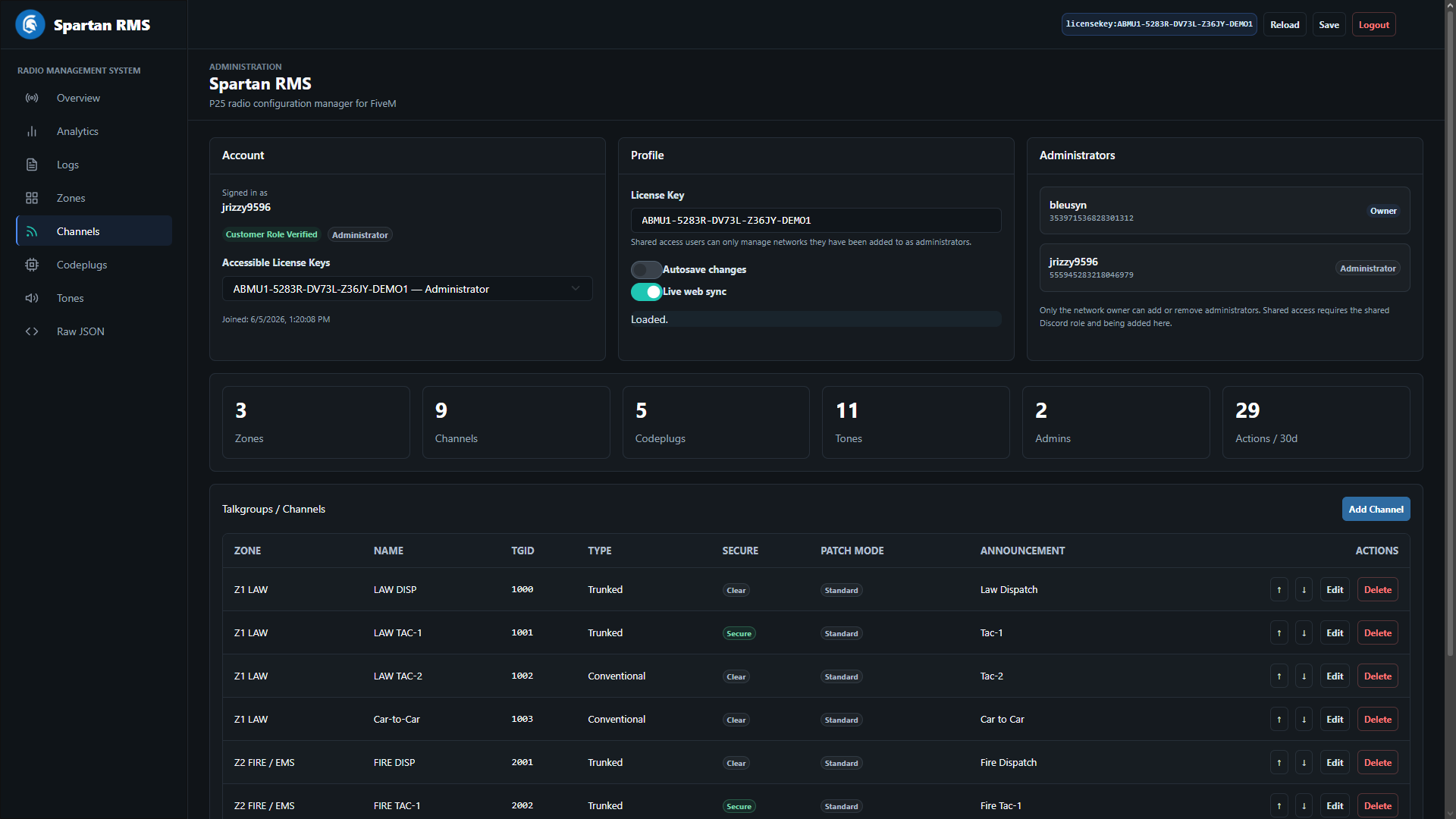
Open https://rms.spartansoftware.app and sign in with Discord. RMS access is based on Discord roles and license ownership:
- Community owners can generate and manage their license key after purchase access appears in the Spartan Customer Portal.
- Shared administrators can manage license keys after the owner adds them to the community or RMS profile.
If Discord login works but your community or license is missing, confirm the owning account in the Spartan Customer Portal and make sure you have been added as an administrator for that community.
Login With Discord
- Open
https://rms.spartansoftware.app. - Click
Continue with Discord. - Authorize the Discord login prompt.
- After returning to RMS, select an existing license key or click
Generate My License Key. - If you were added as an administrator, select the shared license from
Accessible License Keys.
You can bookmark a specific network profile for easier and quicker access.
Save Changes
RMS does not publish local edits until the configuration is saved.
- Click
Saveafter changing profile fields, zones, channels, codeplugs, tones, or raw JSON. Autosave Changessaves shortly after each edit. Use it only when you are comfortable with changes being pushed immediately.Live Web Syncallows other active RMS sessions to receive real-time updates.
Confirm the selected community before saving. Review channel IDs and codeplug zones carefully; a valid profile can still contain unintended channel assignments.
Administrators
Administrators are Discord users who can manage the same RMS network profile. Only the owner of the license key can add or remove administrators.
Add Administrators
- Open the
Overviewtab for the license key. - In the
Administratorscard, enter the user's Discord ID. - Enter the Discord username.
- Click
Add Administrator. - Click
Saveif you have made other config changes.
The administrator must still have the shared RMS access role in Discord. Adding them in RMS grants access to this license key; the Discord role grants permission to enter RMS.
Remove Administrators
Click Remove beside the administrator in the Administrators card. The owner entry cannot be removed from RMS.
Community Info
These fields are in the Overview panel and map directly to the saved JSON profile.
| Field | JSON Key | What It Does |
|---|---|---|
| Community Name | communityName | The full display name for the network, such as State of Georgia Roleplay. |
| Community Abbreviation | communityAbbreviation | The short display or nickname for the network, such as SOGRP |
| Voice Model | voiceModel | Selects the audio processing mode for radio traffic. See the voice model section below. |
The dispatch access code is generated from the community abbreviation and the last segment of the license key. For example, a community abbreviation of SOGRP and a license ending in CG3JD produces:
SOGRP-CG3JDVoice Models
Select one of the four voice models offered in RMS: Legacy Mode, Standard Vocoding, Enhanced Vocoding, or Advance Vocoding. Save the profile, then test radio traffic and dispatch audio with your community. Use /radio refresh in FiveM after a profile change and refresh the dispatch console if needed.
Zones
Zones group channels into radio banks. In the UI, open Zones, then click Add Zone.
| Field | JSON Key | What It Means |
|---|---|---|
| Zone ID | zoneid | Numeric identifier used by channels and codeplugs. (It is automatic, so you do not need to configure it manually unless you choose to do so.) |
| Zone Tag | zonetag | Short display label for the bank, such as Z1 LAW, Z2 FIRE, or Z3 EMS. |
To delete a zone, click Delete in the zone table. Deleting a zone also removes channels assigned to that zone, so move or recreate those channels first if you still need them.
Channels
Channels are stored as talkgroups in JSON. In the UI, open Talkgroups / Channels, then click Add Channel.
| Field | JSON Key | What It Means |
|---|---|---|
| Zone | znid | The zoneid this channel belongs to. |
| Name | name | Channel label shown to users, such as LAW DISP or FIRE TAC-1. |
| TGID | tgid | Numeric channel or talkgroup ID. Keep this unique across the profile. (Not automatic. Conflicting IDs will cause overlapping channel broadcasts.) |
| Channel Type | conventional | false means trunked-style talkgroup. true means conventional-style channel. |
| Secure | secure | Marks the channel as secure/encrypted in the radio profile. |
| Encryption Key Data | encryptionKey | Optional text for key data or future secure-channel metadata. Leave blank when unused. |
| Voice Announcement | announce | Spoken/display announcement text, such as Law Dispatch or Fire Tac-1. |
| Simplex / Duplex (Patching) | simplexDuplexPatch | Enables patch-mode behavior for channels that should support the LASD styled simplex/duplex patch workflow. |
Use trunked-style channels for normal dispatch, operations, tac, and interop talkgroups. Use conventional-style channels for fireground, car-to-car, simplex, direct, or any channel that should feel more like a standalone repeater/simplex channel.
Use Simplex / Duplex (Patching) only on channels intended to participate in the new patch workflow. Standard channels can leave this disabled.
To delete a channel, click Delete in the channel table. Deleting a channel does not delete a zone or codeplug, but tones with a channelWhitelist pointing at that TGID will no longer match an existing channel.
Codeplugs
Codeplugs define which zones a radio profile can see and which radio models are used. In the UI, open Codeplugs, then click Add Codeplug.
| Field | JSON Key | What It Means |
|---|---|---|
| Codeplug ID | codeplugid | Numeric identifier for this codeplug. (Automatic) |
| Codeplug Name | codeplugname | User-facing name, often department or agency focused, such as LSPD. |
| Zone IDs | codeplugzones | Comma-separated list of zone IDs included in this codeplug. |
| Mobile Radio | mobileradio | Mobile unit model used by this codeplug. |
| Handheld Radio | handheldradio | Portable radio model used by this codeplug. |
Supported mobile radio values:
APX6500-E5
APX6500-O2
APX6500-O5
APX6500-O7
XL200M
Supported handheld radio values:
APX4000
APX7000
APX8000
APX8000-HXE
XL200
To delete a codeplug, click Delete in the codeplug table. This removes that selectable radio profile, but it does not delete the zones or channels referenced by the codeplug.
Tones
Tones power dispatch alerting and automated callouts. In the UI, open Tones, then click Add Tone.
| Field | JSON Key | What It Means |
|---|---|---|
| Tone ID | id | Numeric identifier. RMS will normalize duplicate IDs when saving. |
| Tone Type | type | Frequency, Apparatus, or Nature. |
| Freq A | freqACode / freqA | First reed/tone code and its frequency in Hz. |
| Freq B | freqBCode / freqB | Second reed/tone code and its frequency in Hz. |
| Apparatus Name | apparatusName | Unit or apparatus label used in automated dispatch messages. |
| Dispatch Nature | dispatchNature | Incident type label used in automated dispatch messages. |
| Channel Whitelist | channelWhitelist | List of TGIDs where this tone may be used. Empty means all channels. |
Frequency Tones
Use Frequency tones for two-tone paging behavior.
{
  "type": "Frequency",
  "freqACode": "112",
  "freqA": 368.5,
  "freqBCode": "154",
  "freqB": 688.3,
  "channelWhitelist": ["1004"],
  "id": 1
}Apparatus Tones
Use Apparatus tones for units that dispatch can select during automated callouts, such as engines, ladders, rescues, medics, or battalion units.
{
  "type": "Apparatus",
  "apparatusName": "Engine 12",
  "channelWhitelist": ["1004"],
  "id": 2
}
Nature Tones
Use Nature tones for incident categories, such as Residential Structure Fire, Motor Vehicle Accident Injuries Reported, or Advanced Life Support.
{
  "type": "Nature",
  "dispatchNature": "Residential Structure Fire",
  "channelWhitelist": ["1004"],
  "id": 3
}
To delete a tone, click Delete in the tones table. If the tone was used by dispatch presets, the preset will no longer be available.
Raw JSON
The Raw tab shows the exact JSON profile that RMS saves. Use it for bulk edits, copying a known-good template, or recovering a profile.
- Open the
Rawtab. - Edit or paste valid JSON.
- Click
Apply Raw JSON. - Review the zones, channels, codeplugs, and tones tabs.
- Click
Save.
Use the normal RMS forms for administrators and ownership. After applying raw edits, review the visible channel and codeplug assignments before saving.
Having Issues?
If the FiveM resource will not authorize, confirm the license key in the resource matches the selected RMS license key, and the community abbreviation is not blank. If RMS loads but a shared administrator cannot access the key, verify that they have both the shared Discord role and an administrator entry under the license key.