Installation
SpartanCAD Overview
Get started with hosted SpartanCAD, community access, civilian records, dispatch, the MDC, and the FiveM resource.
Your Community CAD
SpartanCAD hosts your community's civilians, vehicles, calls, and other community records. Open SpartanCAD to use your community. Your POC manages access and settings from the community Admin Panel.
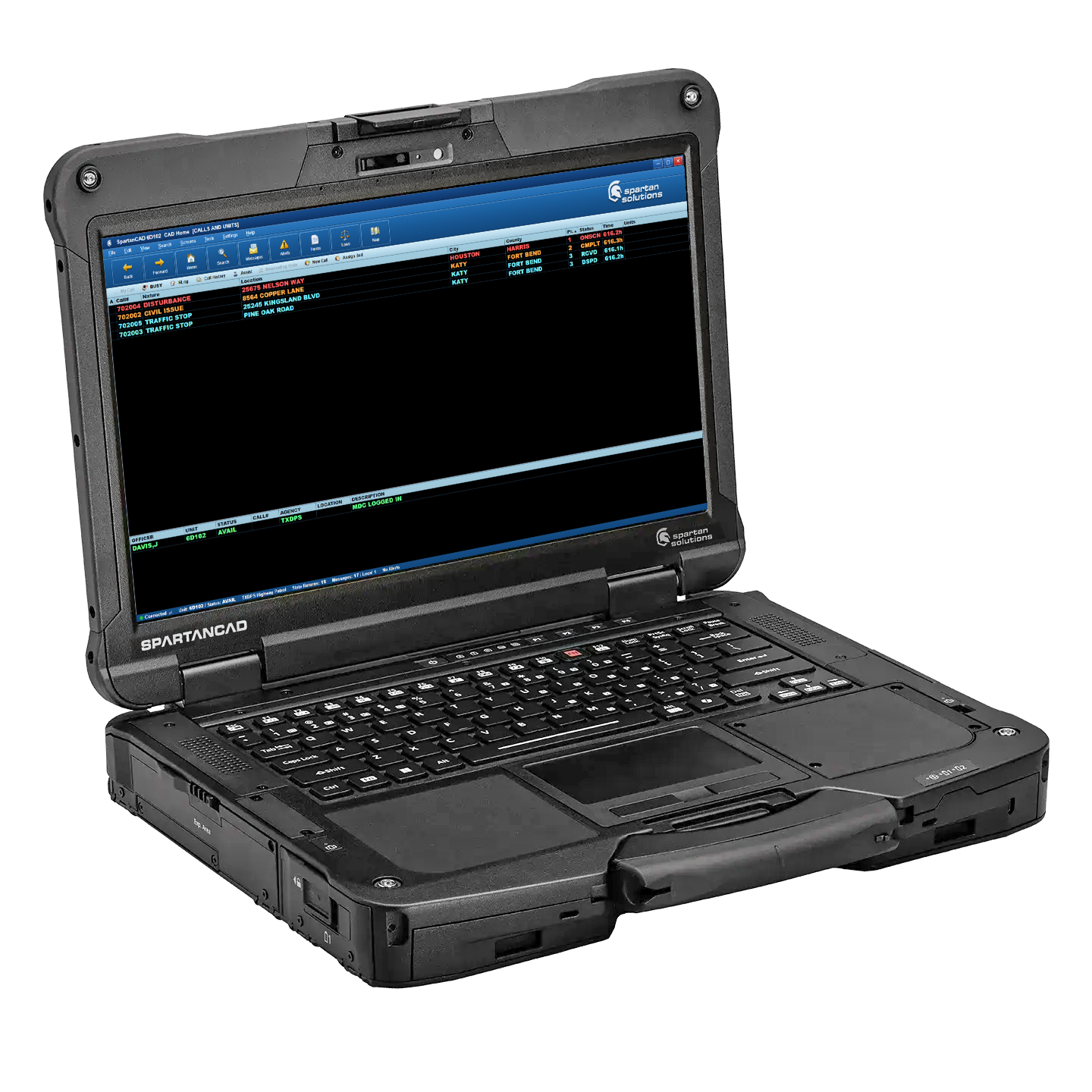
What You Can Use
| Area | Use |
|---|---|
| Web Portal | Sign in, manage your account, and select or join a community. |
| Community Panel | Open the workspaces your community has granted you. |
| Civilian Portal | Create civilians and manage licenses, vehicles, insurance, firearms, and linked records. |
| MDC Workstation | Go on duty, handle calls, run searches, write reports, message units, and use the map. |
| CAD Dispatch | Manage undispatched and dispatched calls, unit assignments, searches, and call history. |
| Community Admin Panel | Manage members, departments, permissions, laws, forms, appearance, and integrations. |
| FiveM Resource | Use CAD in-game, interact with configured vehicle screens, register vehicles, capture mugshots, route to calls, and use optional ALPR and ERS features. |
Players: Start Here
- Sign in to SpartanCAD.
- Join your community using the key supplied by its POC, then select it.
- Open the Civilian, Law Enforcement, Fire/EMS, or Dispatch card assigned to you.
- In FiveM, use
/cador the defaultF6binding and sign in inside that window. - For a mounted display, follow 3D CAD Screens.
POCs: Set Up Your Community
- Open your community's Admin Panel with the account that has management access.
- Configure members, departments, callsigns, permissions, and any Discord access rules.
- Set up community locations, charges, radio codes, and report forms.
- Enable the FiveM features you want and copy the generated resource configuration.
- Install the FiveM resource and verify the server appears in
Detected Servers. - Test a civilian workflow and an on-duty MDC workflow in-game. Configure vehicle displays only if your community uses them.
See Community Admin & Configuration for the POC settings guide.